Setting up Zebra and Munbyn PDA for scanning with Odoo App
Barcode Scanner Device Setup
Zebra Devices (with DataWedge)
- Open Datawedge App
- Edit or Create a new profile
- Open the Profile and set the following:
- Find the Applications > Associated Apps option:

- Click on the 3 Dots in the upper right and select “New app/activity”

- Find the one that says com.android.chrome and select it.
- Find the Keystoke Output section and ensure it is enabled

- Under the Keystock output section look for the “Basic Data Formatting” option and ensure it is set like the following

- Make sure the Odoo app and/or all browser apps are completely closed (a reboot may be required)
- Then reopen the Odoo app and test a barcode scan
Munbyn Device (with InfoWedge app)
- Open the InfoWedge app and edit or create a new profile (I just edited the default profile)
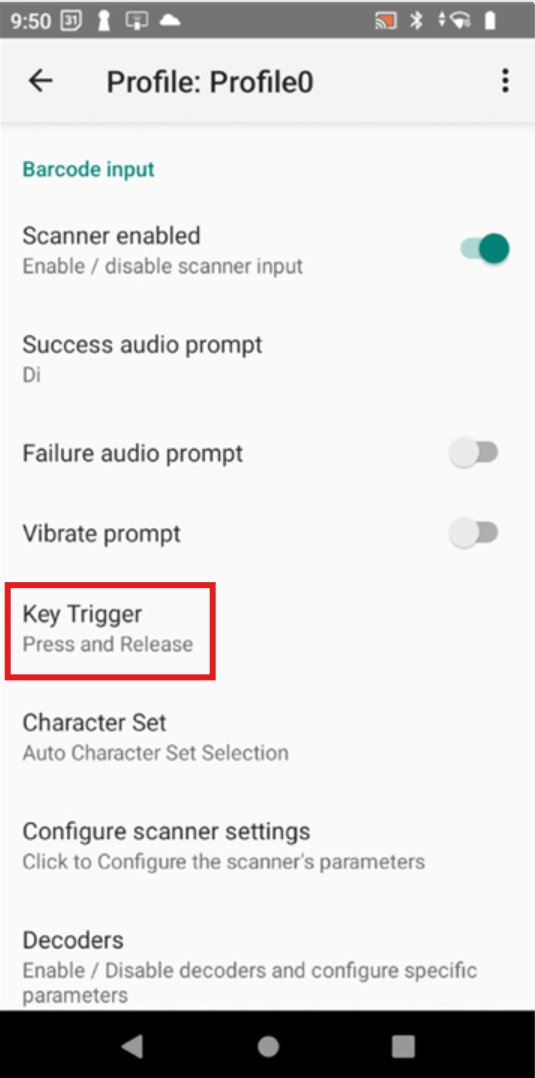
- Ensure that Key Trigger is set to "Press and Release"
- Find Keystoke output section and ensure it is enabled
- Also make sure the keystroke type = Simulate keystroke
- Under the Barcode process section, open the "Basic data formatting” option
- Make sure it is enabled and send ENTER key is selected
- Close all apps and reboot the device. Test with Odoo app to ensure everything scans.