V17
What It Does
Stride Delivery connects Odoo to EasyPost, a multi-carrier shipping platform. From within a delivery order you can shop rates across carriers (USPS, UPS, FedEx, and others), generate labels, track shipments, handle international customs, and manage returns — all without leaving Odoo.
Where to Find It
- **Inventory → Operations → Transfers** (on individual delivery orders)
- **Configuration → EasyPost Account** (for account setup)
> 📷 *[Screenshot: EasyPost Account menu under Inventory > Configuration]*
How to Use It
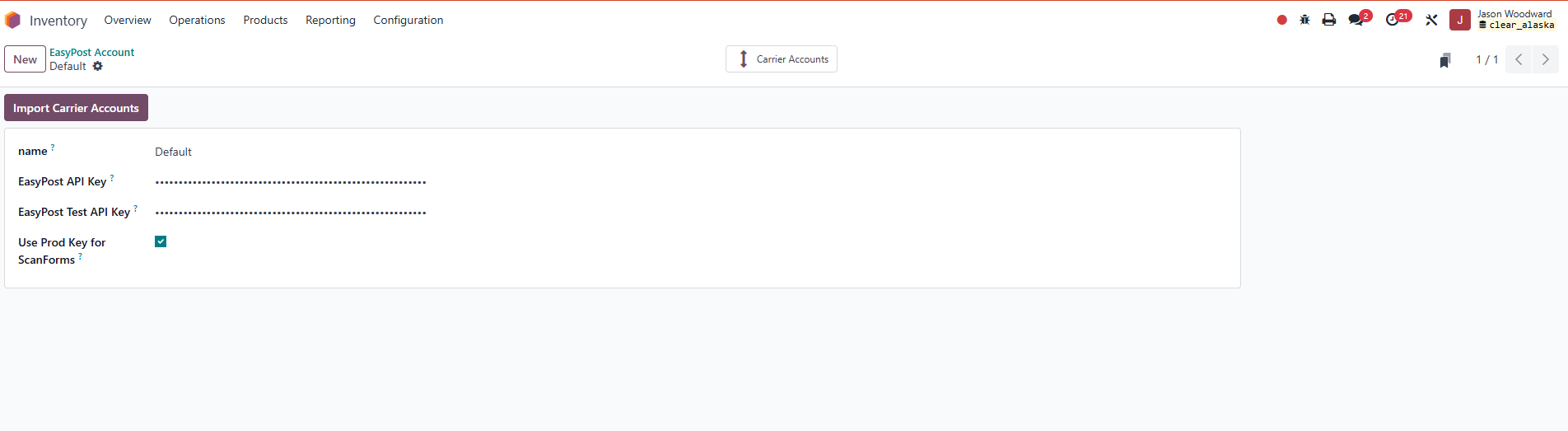
Setting Up Your EasyPost Account
Before using any shipping features, an administrator needs to connect your EasyPost account.
1. Go to **Inventory → Configuration → EasyPost Account**.
2. Click **New** (or open the existing record).
3. Enter your **EasyPost API Key** (found in your EasyPost dashboard).
4. Configure any carrier accounts you want to use (UPS account number, FedEx account number, etc.).
5. Click **Save**.
Getting Shipping Rates on a Delivery Order
1. Open a delivery order (**Inventory → Operations → Transfers**, filter by type "Delivery Orders").
2. Click on the **Tracking Information** tab.
3. Click **Get Rates**. Odoo will query EasyPost and return available rates from all configured carriers.
4. Select the rate you want to use.
5. Click **Buy Label** to purchase and generate the shipping label.
> 📷 *[Screenshot: Tracking Information tab with rate list and Buy Label button]*
Generating a Shipping Label
1. After buying a label, it will appear as a downloadable file on the delivery order.
2. Click the label link to open or print it.
> 📷 *[Screenshot: Label download link on delivery order]*
Tracking a Shipment
- Tracking status updates automatically from EasyPost onto the delivery order.
- Customers can receive tracking notifications by email or SMS based on your notification settings.
> 📷 *[Screenshot: Tracking status and notification fields]*
Cancelling a Label / Requesting a Refund
1. Open the delivery order with the label you need to cancel.
2. Click **Cancel Label**.
3. A refund request is automatically submitted to EasyPost (subject to carrier policies).
International Shipments
For international deliveries, additional fields become available:
- **Customs Form / Certification** — Fill in commodity descriptions, values, and weights.
- **International Rules** — Select the applicable customs handling rule.
> 📷 *[Screenshot: International/customs fields on a delivery order]*
Advanced Shipping Options
When configuring a shipment you may also set:
- **Insurance** — Declare a value to insure the shipment.
- **Signature Required** — Require a signature on delivery.
- **Saturday Delivery** — Request Saturday delivery where available.
- **Return Label** — Generate a return label at the same time as the outbound label.
- **Third-Party Billing** — Bill shipping costs to a third-party carrier account.
> 📷 *[Screenshot: Advanced options section on delivery order]*