V17
Overview
The **Days of Inventory** module tracks how many days of remaining stock each product has, based on its recent sales velocity. The system looks at confirmed sales over a configurable period to calculate an **Average Sold Per Day** rate, then divides the current free stock quantity by that rate to produce a **Days of Inventory** figure.
This tells you at a glance how long your current stock will last at the current pace of sales — and optionally adjusts for expected growth.
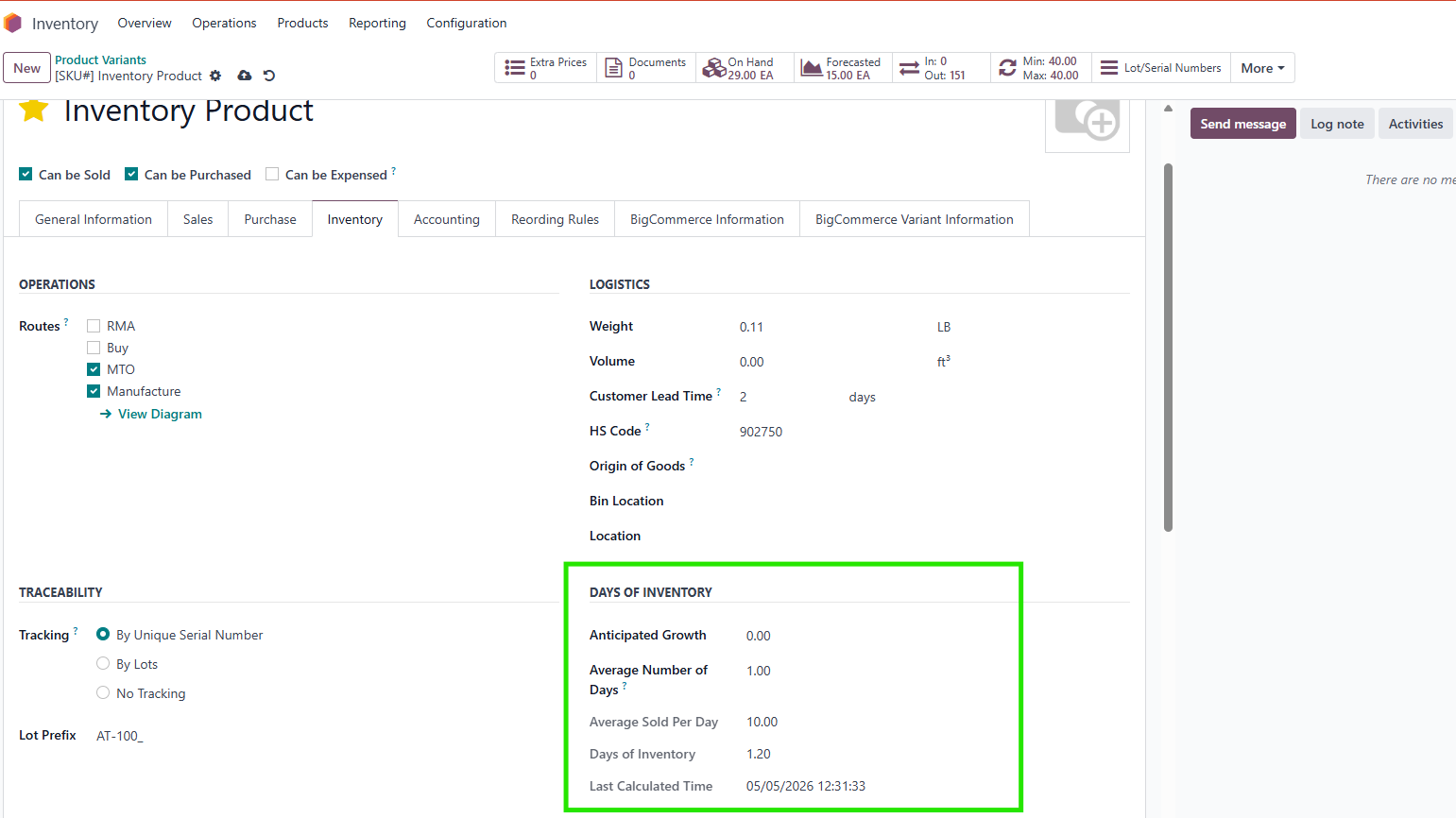
The calculation runs automatically on a nightly schedule and can also be triggered manually at any time.
User Roles & Permissions
| Role | What they can do |
|---|---|
| **Inventory User** | View Days of Inventory fields on products and in the product list |
| **Inventory Manager** | All of the above, plus edit Anticipated Growth, Average Number of Days, manually override Days of Inventory, configure category and company settings, and trigger manual recalculation |
Configuration
Company-Wide Settings
Navigate to **Inventory → Configuration → Settings** and scroll to the **Inventory Days** section.
> **[IMAGE: Inventory Days block in the Stock settings page showing both fields]**
| Field | Description |
|---|---|
| **Average Number of Days** | The global default number of past days used to calculate the daily sales average. Any product or category that does not have its own value will use this setting. If left at 0, the system falls back to **30 days**. |
| **Auto Update After Number of Days** | How many days a product's calculation can sit unchanged before the nightly job recalculates it. Default is **5 days**. Lowering this keeps values fresher; raising it reduces background processing. |
Product Category Settings
Navigate to **Inventory → Configuration → Product Categories** and open a category.
> **[IMAGE: Product category form showing the Average Number of Days field below the Parent Category field]**
| Field | Description |
|---|---|
| **Average Number of Days** | Sets the default averaging period for all products in this category that do not have a product-level value set. If left at 0, the company setting is used. |
> **Note:** Changing this value updates future products that inherit from the category. It does **not** retroactively push the value to products that already have their own `Average Number of Days` set.
Per-Product Settings
Navigate to **Inventory → Products → Products**, open a product, and go to the **Inventory** tab. The **Days of Inventory** group appears for all non-service products.
> **[IMAGE: Product form Inventory tab — Days of Inventory group showing all five fields]**
This is where you can view calculated values and set product-level overrides. Each field is described in detail in the next section.
Understanding the Fields
Anticipated Growth
**Location:** Product form → Inventory tab → Days of Inventory group
This is a percentage that inflates the expected daily demand when calculating Days of Inventory. It is used to plan ahead for expected sales increases — for example, entering `20` means the system assumes demand will be 20% higher than the historical average and calculates how long stock will last at that higher rate.
- A value of `0` means no adjustment (use the raw historical average).
- A positive value reduces the Days of Inventory figure (stock runs out sooner under higher demand).
- A negative value increases the Days of Inventory figure (useful if you expect sales to slow down).
> **[IMAGE: Anticipated Growth field on the product form with an example value entered]**
**What happens when this changes:**
Changing Anticipated Growth immediately invalidates any manually entered Days of Inventory value. The system will recalculate automatically using the formula the next time the product is recomputed.
Average Number of Days
**Location:** Product form → Inventory tab → Days of Inventory group (also on Product Category and Company Settings)
This controls the **divisor** used when calculating the daily sales rate. The system always looks at the last 30 days of confirmed sales, then divides that total by this number to get the daily average.
- Setting this to **30** means: "assume all 30 days in the window were selling days — give me a straight average."
- Setting this to **20** means: "assume only 20 selling days in that 30-day window" — this produces a **higher** daily average and therefore **fewer** Days of Inventory.
- Setting this to **60** would smooth the average over a longer assumed period, producing a **lower** daily average and **more** Days of Inventory.
**Configuration hierarchy:** The system reads this value from the first level that has it set:
Product → Product Category → Company → (fallback: 30)
Changing the value at the product level does **not** affect the category or company. When you change a product's category, this field is automatically refreshed to the new category's value.
> **[IMAGE: Average Number of Days field showing the hierarchy note in the field help tooltip]**
Average Sold Per Day
**Location:** Product form → Inventory tab → Days of Inventory group (read-only)
This is the computed daily sales rate for the product. It cannot be edited directly — it is recalculated automatically from confirmed sales orders.
The value is calculated as:
Average Sold Per Day = Total Units Sold (last 30 days) ÷ Average Number of Days
The result is rounded to the product's unit of measure precision.
For products with multiple variants, the value shown on the template is the **sum** of all variants' average sold values.
> **[IMAGE: Average Sold Per Day field showing a computed read-only value with "Units per day" label]**
Days of Inventory
**Location:** Product form → Inventory tab → Days of Inventory group
This is the main output of the module — the number of days the current free stock will last at the current (growth-adjusted) daily demand.
The calculation is:
Daily Demand = Average Sold Per Day × (1 + Anticipated Growth / 100)
Days of Inventory = Free Stock Quantity ÷ Daily Demand
If Daily Demand is zero (the product has had no sales in the period), the system returns a default of **3.0 days** rather than dividing by zero.
**This field can be manually overridden.** Type a value directly into the field and save. The system will preserve your entered value as long as the underlying data (stock quantity, average sold, and anticipated growth) has not changed. See the [Manual Override](#manual-override) section for full details.
> **[IMAGE: Days of Inventory field on the product form showing a calculated value with "days" label]**
Last Calculated Time
**Location:** Product form → Inventory tab → Days of Inventory group (read-only) / Product list view (optional column)
The timestamp of the most recent calculation. The nightly cron job uses this to identify products whose data is stale and needs refreshing. If this timestamp is older than the **Auto Update After Number of Days** threshold, the product will be recalculated on the next nightly run.
> **[IMAGE: Last Calculated Time field showing a recent datetime value]**
How Days of Inventory Is Calculated
The full calculation flow for a product is:
1. **Gather sales data:** The system queries all confirmed sale order lines for this product over the last 30 days.
2. **Compute daily average:** Total units sold ÷ Average Number of Days (from the hierarchy: product → category → company → 30).
3. **Apply growth adjustment:** Multiply the daily average by `(1 + Anticipated Growth / 100)` to get Daily Demand.
4. **Divide by free stock:** Free Stock Quantity ÷ Daily Demand = Days of Inventory.
5. **Round:** The result is rounded to the product's unit of measure precision.
Full formula:
[Average Sold Per Day] = Total Units Sold (last 30 days) ÷ [Average Number of Days]
Daily Demand = [Average Sold Per Day] × (1 + [Anticipated Growth] / 100)
[Days of Inventory] = [Free to Use Qty] ÷ Daily Demand
Example:
| Input | Value |
| Units sold in last 30 days | 300 |
| Average Number of Days | 30 |
| Average Sold Per Day | 300 ÷ 30 = **10 units/day** |
| Anticipated Growth | 20% |
| Daily Demand | 10 × 1.20 = **12 units/day** |
| Free Stock | 500 units |
| **Days of Inventory** | 500 ÷ 12 = **41.67 days** |
Manual Override
You can manually type a Days of Inventory value directly on the product form. This is useful when you know the calculated figure is not realistic for a specific product and want to set a fixed value temporarily.
**To set a manual override:**
1. Open the product form → Inventory tab.
2. Click into the **Days of Inventory** field and type the desired value.
3. Save the record.
4. Odoo will prompt you to confirm — this is the standard save for a stored, computed field with an inverse.
> **[IMAGE: Days of Inventory field with a manually entered value before saving]**
**How the override is preserved:**
When you save a manual value, the system records a hidden "signature" based on the product's current stock quantity, average sold rate, and anticipated growth at that moment. On every subsequent recalculation, the system checks whether those values have changed:
- If they are **unchanged** → your manual value is kept.
- If they have **changed** → the manual override is discarded and the formula result is used.
**What automatically clears a manual override (immediately, without waiting for a signature check):**
| Change | Effect |
|---|---|
| Editing **Anticipated Growth** | Manual override cleared immediately |
| Changing the product's **Category** | Manual override cleared immediately |
| Changing the product's **Type** | Manual override cleared immediately |
> **[IMAGE: Product form showing the Days of Inventory field after a change to Anticipated Growth has cleared the manual override]**
Product List View
Navigate to **Inventory → Products → Products** (the list view). Four optional columns are available — click the **column visibility icon** (the settings icon at the right end of the column header row) to toggle them on or off.
> **[IMAGE: Product list view with the column visibility menu open, showing the four new columns enabled]**
| Column | What it shows |
|---|---|
| **Anticipated Growth** | The product's growth percentage adjustment |
| **Average Sold** | Units sold per day (computed average) |
| **Days of Inventory** | Days of stock remaining (calculated or manual) |
| **Last Calculated Time** | When the calculation was last run |
> **[IMAGE: Product list view with all four columns visible alongside the standard On Hand column]**
Reordering Rules Integration
Navigate to **Inventory → Operations → Replenishment**. A **Use Days of Inventory** checkbox is available as an optional column on the reorder rules list.
> **[IMAGE: Replenishment list view showing the "Use Days of Inventory" column alongside the Min and Max columns]**
When **Use Days of Inventory** is enabled on a reorder rule, the **Min** and **Max** quantity fields change their meaning:
| Field | Standard meaning | With Use Days of Inventory enabled |
|---|---|---|
| **Min** | Minimum on-hand quantity to trigger replenishment | Minimum **days of inventory** before a replenishment is triggered |
| **Max** | Target on-hand quantity to replenish up to | Target **days of inventory** to replenish up to |
**How the order quantity is calculated:**
```
Qty to Order = Average Sold Per Day × (Max Days − Min Days)
```
The order is only created if the product's current Days of Inventory is **less than** the Min value. If the product already has more days of stock than the Min threshold, no order is placed.
**Example:**
| Input | Value |
|---|---|
| Current Days of Inventory | 4 days |
| Min (days) | 7 |
| Max (days) | 30 |
| Average Sold Per Day | 10 units/day |
| Trigger? | Yes — 4 < 7 |
| **Qty to Order** | 10 × (30 − 7) = **230 units** |
> **[IMAGE: Reorder rule with Use Days of Inventory enabled, showing Min = 7, Max = 30, and the resulting Qty to Order]**
Recalculating Days of Inventory
Automatic Nightly Update
A scheduled job runs **once every day** automatically. It finds all storable and consumable products whose **Last Calculated Time** is older than the **Auto Update After Number of Days** threshold (configured in Settings) and recalculates their Average Sold Per Day and Days of Inventory.
Service products are always excluded from this job.
No manual action is required — values stay current on their own as long as the scheduled job is active.
Manual Recalculation
You can force an immediate recalculation for one or more products at any time using the **Compute Inventory Days** server action.
**From the product list view:**
1. Navigate to **Inventory → Products → Products**.
2. Select one or more products using the checkboxes on the left.
3. Click **Action → Compute Inventory Days**.
> **[IMAGE: Product list view with two products selected and the Action menu open showing "Compute Inventory Days"]**
**From the product form:**
1. Open the product.
2. Click **Action → Compute Inventory Days**.
> **[IMAGE: Product form with the Action menu open showing "Compute Inventory Days"]**
The Last Calculated Time will update immediately after the action completes.